
Have you ever pressed send, only to watch in frustration as your message stubbornly refuses to leave your outbox? If so, you are not alone. The challenge of dealing with an email does not send error is a common source of stress for both individuals and businesses.
This essential troubleshooting guide for 2026 is designed to help you quickly identify and resolve the reasons why your email does not send. Whether you are facing a simple mistake or a complex technical hurdle, we have you covered.
Inside, you will find a step-by-step approach that covers basic checks, advanced server-side issues, authentication problems, device troubleshooting, and preventative best practices. Our goal is to equip you with the practical knowledge needed for reliable email communication.
Ready to put an end to email does not send headaches? Let us dive into expert solutions that will keep your messages moving.
Step 1: Basic Checks and Common Mistakes

Struggling when your email does not send? Before diving into complex fixes, start with these foundational steps. Even seasoned professionals overlook basic issues that can bring communication to a halt. Let us walk through the most common culprits and how to resolve them.
Confirm Internet Connectivity
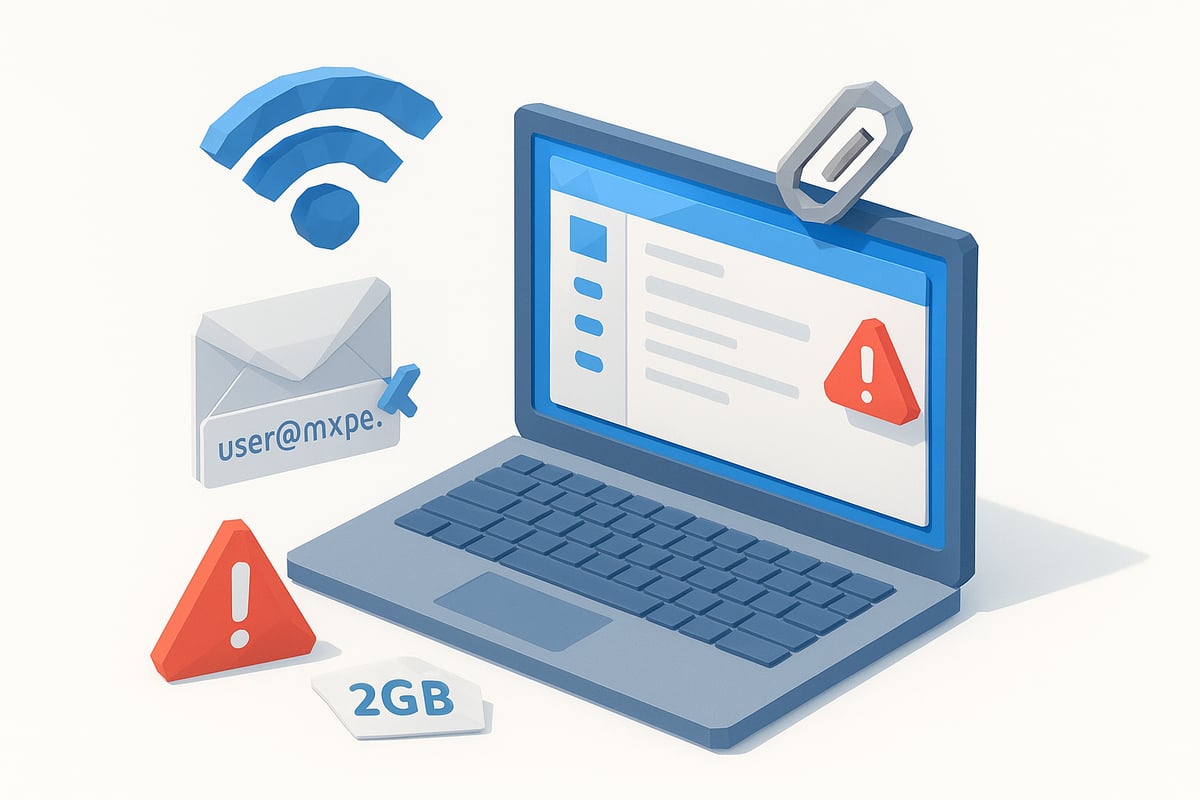
A reliable internet connection is essential when your email does not send. Intermittent Wi-Fi or mobile data drops can silently block outgoing messages. For example, if your device switches between networks or loses signal, the email may remain unsent.
According to HelpDesk reports, over 30% of email problems stem from network connectivity issues. Always check your device's connection status and try loading a webpage to confirm your internet is working.
If using public Wi-Fi, remember that some networks restrict outgoing email ports. Switching to mobile data or a different network can help determine if connectivity is the root cause.
Validate Recipient Email Address
Typos are a frequent reason why an email does not send. Even a single character error in the recipient's address can prevent delivery. Common mistakes include misspelled domains, such as typing ".con" instead of ".com," or omitting part of the address.
Double-check for spaces, misplaced dots, or missing letters. Some email clients highlight invalid addresses, but not all errors are caught automatically.
If you repeatedly get a bounce-back, copy the recipient address, paste it into a new draft, and verify each part before resending.
Check Attachment Size and File Types
Large attachments or unsupported file types can stop your email does not send attempts. Each provider sets its own limits:
| Provider | Max Attachment Size |
|---|---|
| Gmail | 25 MB |
| Outlook | 20 MB |
| Yahoo | 25 MB |
Blocked file types, like .exe or certain .zip files, are often rejected for security reasons. If your message contains one of these, consider using a cloud storage link instead.
Reduce file size or compress images before attaching. Check your provider’s documentation for specific file restrictions.
Review Outbox and Drafts
If your email does not send, check the Outbox folder. Emails stuck here usually mean they have not left your device. Common causes include connectivity loss or an application error.
- Open your email client and navigate to the Outbox.
- Try resending the message or delete it and create a new draft.
- Sometimes, clearing the Outbox helps resolve persistent issues.
Drafts that never move to Sent could indicate a deeper problem with your account or client.
Ensure Email Account is Active
An inactive or suspended account is a critical reason why email does not send. Forgotten passwords, expired subscriptions, or security holds can block outgoing mail. If you suspect account access issues, use the Forgot password and account access guide to reset credentials and regain control.
Also, check for any emails from your provider about suspension or required action. Keeping your account active ensures your messages are always ready to go.
Examine Email Client Status
Sometimes, the issue is not with your account but with the email client itself. Offline mode or paused send/receive features may stop outgoing emails, so always verify the status at the bottom of your application window.
For instance, Apple Mail requires manual reconnection if it loses sync. Restarting the client or toggling online/offline status can quickly resolve this problem.
Look for Error Messages and Codes
When your email does not send, pay close attention to any error messages or codes. These provide valuable clues about the root cause. Common SMTP/IMAP codes include:
- 550: Requested action not taken, mailbox unavailable
- 421: Service not available, try again later
- 552: Exceeded storage allocation
Consult Microsoft or Google support documentation for detailed explanations of these codes. Documenting the code can help IT support resolve the problem faster.
Step 2: Server-Side and Provider Issues
When the email does not send, server-side and provider-related factors are often the culprit. Even if your device and connection are working perfectly, misconfigurations or external issues can prevent successful delivery. Understanding these core elements is essential for resolving persistent email does not send problems.
Verify Outgoing Mail Server (SMTP) Settings
A common reason why an email does not send is incorrect SMTP configuration. Each provider uses specific server addresses, ports, and encryption methods. For example, Gmail typically uses smtp.gmail.com on port 465 or 587 with SSL/TLS, while Outlook requires smtp.office365.com on port 587.
| Provider | SMTP Server | Port | Encryption |
|---|---|---|---|
| Gmail | smtp.gmail.com | 465/587 | SSL/TLS |
| Outlook | smtp.office365.com | 587 | STARTTLS |
| Yahoo | smtp.mail.yahoo.com | 465 | SSL |
Double-check your SMTP settings in your email client. Even a minor typo can mean your email does not send. Refer to your provider’s documentation for the latest settings before making changes.
Check Email Provider Status and Outages
Sometimes, the problem is not with you but with the provider. If the email does not send, confirm whether your provider is experiencing an outage. Providers like Google and Microsoft offer real-time status dashboards. Major outages, such as the Gmail incident in 2025, have blocked outgoing mail for millions.
- Visit your provider’s status page for updates.
- Check social media for widespread reports.
- Wait for resolution if an outage is confirmed.
If the email does not send during an outage, patience and monitoring are your best options.
Review Sending Limits and Quotas
Every provider sets daily or monthly sending limits to prevent spam. If you exceed these quotas, the email does not send until limits reset. For example, Gmail allows 500 emails per day for free accounts and 2,000 for Workspace users. Outlook and Yahoo have similar policies.
- Check account usage in your provider dashboard.
- Reduce bulk sends or stagger campaigns.
- Wait for quotas to reset before retrying.
If you notice repeated send failures, review your recent activity. Hitting a quota wall is a frequent cause when the email does not send.
Identify Blacklisted or Blocked Accounts
If your account is flagged for suspicious activity or spam, the email does not send until the block is lifted. Over 20% of business users experience temporary blocks each year. Causes include mass emailing, spam complaints, or hacked accounts.
Common signs:
- Bounce-back messages referencing blacklisting
- Provider notifications of suspicious activity
Contact your provider’s support to resolve blocks. Prevent future issues by following best sending practices and monitoring account health, especially if the email does not send after normal use.
Inspect SPF, DKIM, and DMARC Records
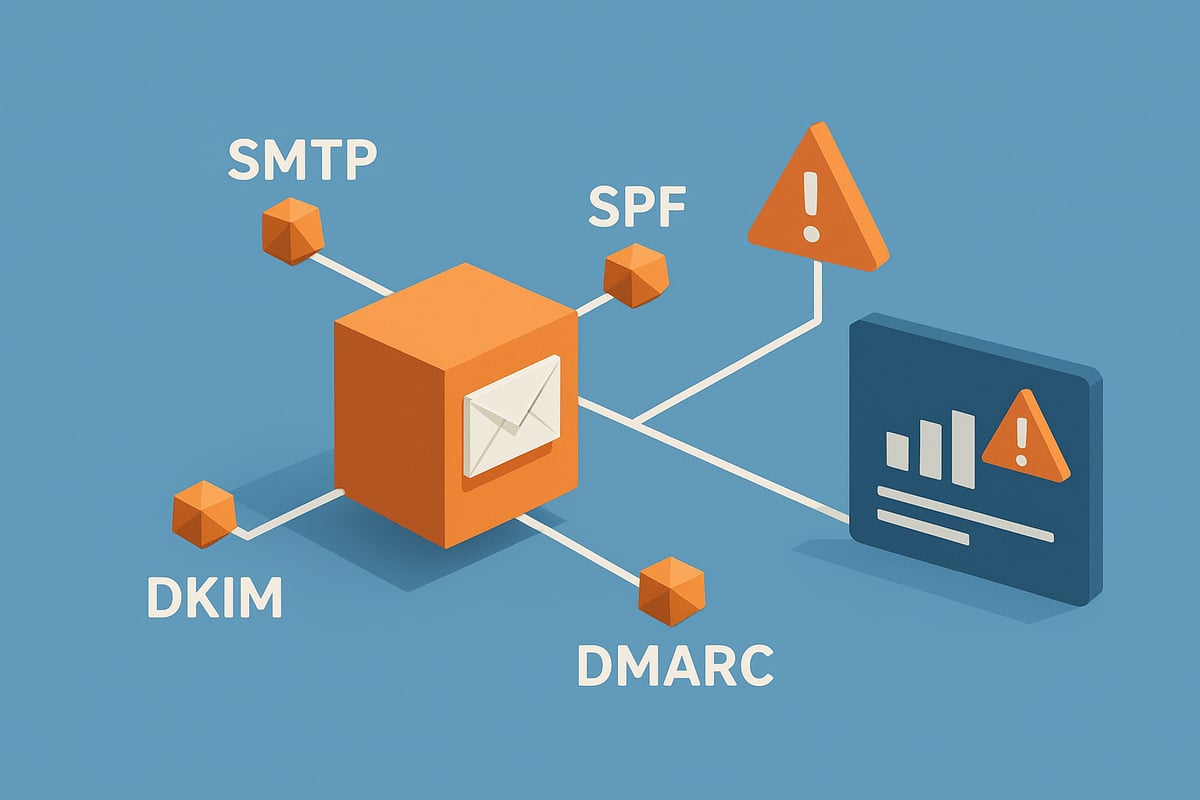
Authentication records like SPF, DKIM, and DMARC verify your domain’s legitimacy. If these records are missing or misconfigured, the email does not send or is rejected as spam. Each protocol serves a unique purpose:
- SPF: Authorizes permitted servers.
- DKIM: Signs messages to prove authenticity.
- DMARC: Sets rules for handling failures.
For a deeper dive, consult Email authentication best practices to ensure your setup is robust and compliant.
Regularly review these records, especially after domain or server changes. Authentication gaps are a leading reason why the email does not send.
Monitor for IP Reputation Issues
Your sending IP’s reputation is vital for email deliverability. If your IP is blacklisted, the email does not send to many recipients. Use tools such as MXToolBox to check your IP status.
- Avoid sending spam-like content.
- Rotate IPs if you manage high-volume sending.
- Request delisting if you are blacklisted.
Maintaining a clean reputation is key to preventing email does not send scenarios linked to server-level blocks.
Understand Provider-Specific Restrictions
Each provider enforces unique rules that may stop outgoing mail. For example, Yahoo blocks certain keywords, and Office365 may throttle accounts with excessive activity. In 2026, Office365’s anti-spam throttling has become stricter, affecting many users.
- Review provider documentation for up-to-date restrictions.
- Modify content or sending patterns as needed.
- Contact support if the email does not send without clear cause.
Staying informed about these evolving policies will help ensure consistent email delivery.
Step 3: Authentication and Security Roadblocks
Authentication and security measures are now central to reliable email sending. In 2026, even a minor misstep can cause "email does not send" headaches. This section breaks down the top authentication and security pitfalls, so you can resolve issues quickly and get your messages moving again.
Confirm Login Credentials and Two-Factor Authentication
If your email does not send, start by checking your login credentials. Entering an incorrect password or username is a common error. Two-factor authentication (2FA) can also cause issues, especially if your device is not synced or you have lost access to your authentication method.
For example, after a security breach, providers may force a password reset, locking you out until credentials are updated. Always ensure your password and 2FA codes are current. If you use an authenticator app, verify its time settings, as mismatches can block authentication. Re-authenticate and try sending again.
Review App Passwords and OAuth Permissions
Modern email systems often require app-specific passwords or OAuth permissions for third-party clients. If your email does not send, outdated or revoked permissions could be the culprit. Google and Microsoft accounts, for instance, may revoke OAuth access after a security event or device change.
Generate a new app password if your client does not support OAuth. Check your provider’s security dashboard for any permission revocations. Reauthorize the app and refresh its connection. This step is especially important when using automation tools or syncing email across multiple devices.
Check for Suspicious Activity or Account Compromise
Unusual account activity is another reason your email does not send. Providers like Microsoft and Google monitor for suspicious logins, such as access from new countries or devices. If detected, your account may be temporarily locked, blocking outgoing emails.
You might receive alerts about sign-in attempts or see a message requiring verification. Review recent login history and secure your account if anything looks suspicious. Update your password and enable extra security features. This proactive approach helps prevent future disruptions.
Examine Firewall and Antivirus Settings
Firewalls and antivirus software are designed to protect, but sometimes they block outgoing email traffic. If your email does not send, check if ports 25, 465, or 587 are blocked. Some antivirus tools may even quarantine outgoing messages, mistaking them for threats.
Temporarily disable your firewall or antivirus to test if this resolves the send issue. If so, add your email client to the software’s safe list. Consult your IT department or support resources for advanced firewall configuration. Regular updates can also prevent new conflicts.
Investigate Suspicious Content Triggers
Spam filters are stricter than ever. If your email does not send, review your message content for common red flags. Triggers include certain keywords, suspicious links, or attachments that resemble malware. Bulk sending or repeated failed attempts can also raise alarms.
To avoid blocks, keep messages clear and avoid excessive links or attachments. If your message is flagged, rewrite it and remove problematic content. Test sending a plain text version. Consistent issues may indicate your sender reputation needs improvement.
Address Encryption and Secure Sending Requirements
In 2026, most providers require encrypted connections for outgoing mail. If your email client does not support TLS or SSL, your emails may be blocked. Over 90 percent of providers now mandate secure protocols. For technical guidance and configuration tips, the Email authentication protocols overview is an excellent resource.
Regularly update your client and check provider documentation for required security settings. Secure sending protects your data and ensures compliance with modern standards.
Understand Multi-Factor and Biometric Barriers
Many business accounts now use multi-factor or even biometric authentication for extra security. If your email does not send, confirm you have completed all required authentication steps. Biometric scans or security keys may be needed for each session.
Keep backup methods available in case your primary authentication fails. As these security layers become standard, staying prepared ensures uninterrupted email communication.
Step 4: Troubleshooting Email Clients and Devices
When email does not send, the problem often lies within your device or email client. Even the smallest misconfiguration can prevent your message from leaving your outbox. Let us walk through essential troubleshooting steps to help you regain control and ensure your emails reach their destination.
Update Email Apps and Operating Systems
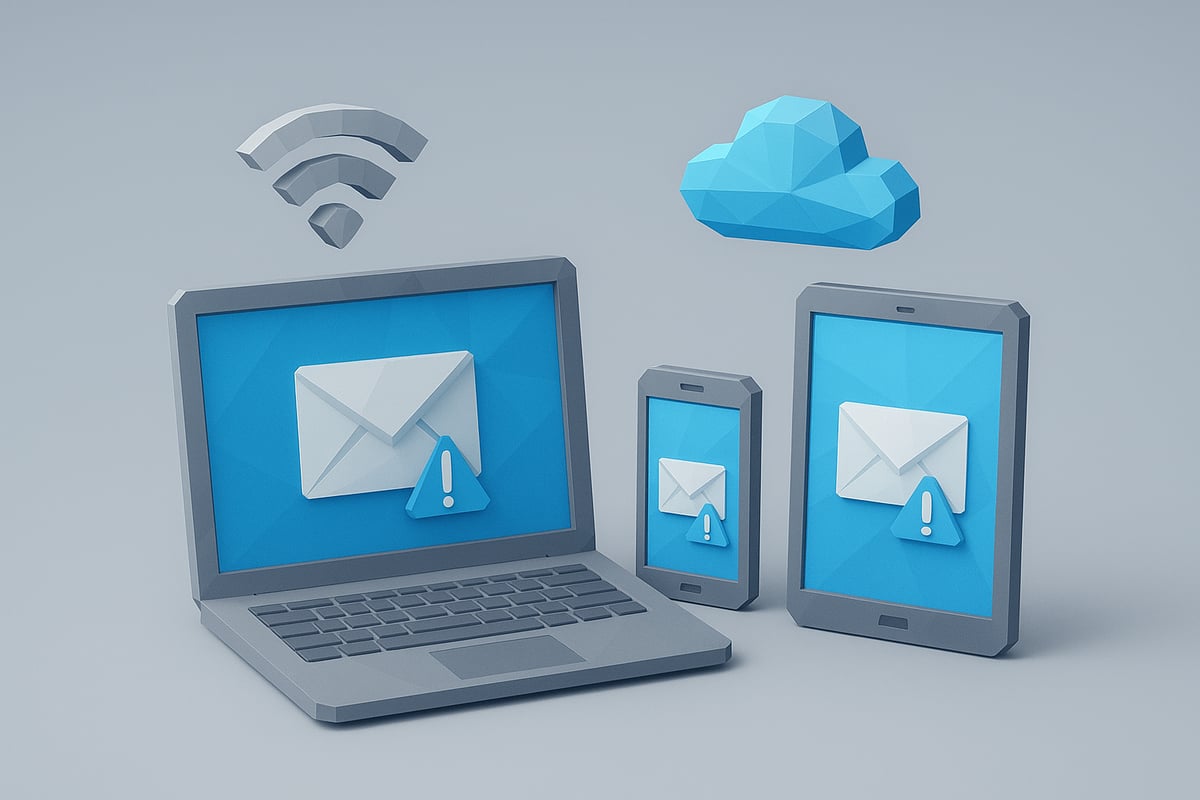
Outdated email applications and operating systems are a frequent reason why email does not send. Providers continually update their protocols, so older apps may lose compatibility. For instance, Google blocked legacy Outlook versions in 2026, leading to widespread send failures.
Updating your email client and device OS ensures you have the latest security patches and protocol support. Check for updates in your app store or system settings regularly. If email does not send even after updating, proceed to the next steps.
Reconfigure or Reinstall Email Accounts
Sometimes, a corrupted account configuration can cause email does not send issues. Removing and re-adding your email account often resolves sync errors or stuck messages.
To reconfigure, delete the problematic account from your email app, then add it back with the correct server settings. Double-check your username, password, and authentication method. This refreshes your connection and often fixes persistent issues where email does not send.
Test Sending from Different Devices
If email does not send on one device, try sending from another. Switching between webmail, desktop, and mobile clients helps isolate whether the issue is device-specific or widespread. For example, a bug in the Android app in 2025 caused mass send failures, while webmail still worked.
Testing across platforms can reveal if configuration or network issues are the culprit. According to the Email deliverability report 2025, nearly 17% of emails never reach their destination, often due to client-side misconfiguration. If email does not send on all devices, the problem may be server-side.
Clear Cache, Cookies, and App Data
Corrupted cache or app data can block outgoing mail, leading to email does not send problems. Clearing these files refreshes your client and often resolves hidden glitches.
Here is a quick reference for clearing cache in major clients:
| Client | Steps to Clear Cache |
|---|---|
| Gmail Web | Settings Advanced Clear Data |
| Outlook App | File Options Advanced Clear |
| Apple Mail | Preferences Accounts Remove/Reset |
| Android Apps | Settings Apps Storage Clear |
After clearing, restart your app and try sending again. If email does not send persists, continue troubleshooting.
Examine Third-Party Add-ons and Extensions
Add-ons, such as encryption tools or grammar checkers, can interfere when email does not send. Disable all extensions, then send a test email. If it works, re-enable add-ons one by one to identify the culprit.
Conflicting extensions are a frequent but overlooked cause of email does not send issues. Keeping only essential add-ons reduces risk and ensures smoother performance.
Check Device Storage and Memory
Low storage prevents your device from saving or sending messages. When your inbox or device is full, email does not send and may stall indefinitely.
Free up space by deleting old emails, attachments, and unused apps. Check your device’s storage status and ensure there is enough available memory for normal email operations.
Review Device and App Permissions
Modern privacy settings can block email access to networks, storage, or contacts. If permissions are restricted, email does not send as expected.
Review your app’s permissions in device settings. Grant access to all necessary resources, then test sending once more. Regularly reviewing permissions is vital, especially after system updates.
Step 5: Advanced and Business-Specific Email Sending Issues
When your email does not send despite passing basic checks, advanced issues may be at play, especially for businesses or high-volume users. These problems often involve bulk sending limits, deliverability concerns, integrations, or compliance challenges. Let's explore the most common advanced hurdles and how to overcome them.
<div data-youtube-video> <iframe src="https://www.youtube.com/embed/E4ddBaXzKYc" frameborder="0" allowfullscreen data-type="youtube" data-youtube-video-id="E4ddBaXzKYc" ></iframe> </div>Understand Bulk and Transactional Email Restrictions
Sending to hundreds or thousands of recipients at once? Providers treat bulk and transactional emails differently. Bulk emails, such as newsletters or promotions, are subject to stricter limits and scrutiny. Transactional emails, like receipts or password resets, must follow specific rules to ensure delivery.
| Type | Typical Use | Common Limits |
|---|---|---|
| Bulk | Newsletters, promos | 500-10,000/day |
| Transactional | Receipts, alerts | 1,000-100,000+/day |
New accounts often face tighter restrictions. If your email does not send when reaching large lists, review your provider's policies and consider a dedicated email service for scale.
Monitor Email Deliverability and Spam Folder Placement
Even when your email does not send successfully, it might land in the spam folder or get blocked due to poor sender reputation. High bounce rates, frequent complaints, and unverified domains all harm deliverability.
Recent data shows 17% of legitimate business messages still end up in spam. To improve outcomes, authenticate your domain, maintain clean lists, and avoid sending to disengaged recipients. Use real-time analytics to monitor placement and open rates.
Audit Automated Workflows and Integrations
Businesses often rely on automated tools like CRMs, SaaS platforms, or workflow automation services. Misconfigurations or integration errors can cause silent failures where your email does not send as expected.
For example, a Zapier misstep may block triggered messages without clear alerts. Review your automation logs, test workflows regularly, and consult the Zapier integration troubleshooting guide for step-by-step solutions.
Troubleshoot API-Based Sending Failures
When sending emails programmatically, API errors can stop messages from leaving your system. Common API response codes include 401 (unauthorized), 403 (forbidden), and 429 (rate limit exceeded).
{
  "status": 403,
  "error": "Insufficient permissions to send"
}
Check API keys, permissions, and quotas. Refer to the API reference for email sending for technical documentation and troubleshooting advice.
Address DNS and Domain Configuration Errors
Email delivery relies on correct DNS and domain records. If your MX or SPF records are missing or misconfigured, your email does not send out or gets rejected by recipient servers. New domains are especially prone to setup mistakes, with 40% of new owners facing errors.
Double-check your DNS settings, allow time for propagation, and use online tools to verify your configuration.
Ensure Compliance with New Email Regulations (2026)
Recent updates to laws like GDPR, CAN-SPAM, and the EU Digital Markets Act have added stricter requirements for business email. Consent, clear opt-outs, and accurate sender details are now mandatory for most transactional and marketing messages.
If your email does not send to EU recipients, review your compliance steps and update consent management processes to avoid regulatory blocks.
Proactive Monitoring and Alerting Solutions
To avoid future issues where email does not send, implement real-time monitoring and alerting. Leading tools such as Postmark, Mailgun dashboards, or enterprise-grade solutions can notify you instantly of delivery failures, quota overruns, or suspicious activity.
By staying proactive, you reduce downtime and keep your business communications running smoothly.
Step 6: Preventative Best Practices for Reliable Email Sending
Reliable email delivery does not happen by accident. Proactive strategies help ensure your messages reach their destination every time. If email does not send reliably, these best practices will help you build a resilient, future-proof system.
Regularly Update and Secure Email Infrastructure
Outdated software is a leading cause when email does not send as expected. Providers release patches to fix vulnerabilities and improve compatibility.
- Schedule routine updates for all email clients and servers.
- Patch operating systems and security tools regularly.
- Audit firewall and antivirus settings for outgoing mail support.
Legacy systems are at risk for zero-day exploits. By keeping everything current, you prevent disruptions and ensure stable delivery.
Implement Robust Email Authentication (SPF, DKIM, DMARC)
Authentication protocols are essential if email does not send or lands in spam. SPF, DKIM, and DMARC help providers verify your identity.
Quick Setup Table:
| Protocol | Purpose | Tip |
|---|---|---|
| SPF | Sender validation | Authorize sending IPs |
| DKIM | Message integrity | Generate secure key pairs |
| DMARC | Policy enforcement | Set to 'quarantine' or 'reject' |
Domains with all three records see fewer send failures. Test your records with online tools to ensure alignment and maximize deliverability.
Educate Users on Phishing and Suspicious Email Behavior
Human error often explains why email does not send or gets flagged. Employees must recognize phishing and avoid risky behaviors.
- Conduct annual phishing simulations.
- Provide ongoing security training.
- Share examples of suspicious attachments and links.
A well-trained team is your first line of defense against evolving threats.
Use Reputable Email Service Providers
The provider you choose directly affects whether email does not send reliably. Top providers maintain robust infrastructure and monitor for deliverability issues.
Provider Comparison Table:
| Provider | Uptime | Spam Protection | Support |
|---|---|---|---|
| Gmail | 99.9% | Advanced | 24/7 |
| Outlook | 99.9% | Strong | 24/7 |
| Zoho | 99.9% | Good | Business Hrs |
Choose a provider with proven reliability, responsive support, and strong security.
Monitor Account Activity and Set Alerts
Unusual activity can explain why email does not send or is blocked. Monitoring tools catch issues early.
- Enable alerts for send failures and suspicious logins.
- Review logs for quota limits or unauthorized access.
- Use built-in dashboards to spot trends.
Proactive monitoring helps you resolve problems before they impact your business.
Maintain Clean and Verified Email Lists
Dirty lists cause bounces and trigger spam filters, leading to situations where email does not send. Regular verification is critical.
- Remove invalid or inactive addresses quarterly.
- Use list cleaning services to detect typos and fake emails.
- According to Email list quality statistics 2025, nearly 20% of email addresses can harm deliverability.
Clean lists improve your sender reputation and reduce the risk of blocks.
Create Clear Sending Policies and Documentation
When email does not send, confusion can delay troubleshooting. Set clear internal policies for sending practices.
- Document escalation paths for unresolved issues.
- Outline criteria for acceptable attachments and content.
- Maintain a helpdesk workflow for reporting send failures.
Clear documentation reduces downtime and empowers your team to act quickly.
Future-Proof Against Emerging Threats and Changes
The landscape is always changing, so if email does not send, emerging threats may be the cause. Stay ahead with these steps:
- Subscribe to industry news for updates on compliance and technology.
- Test new authentication protocols before enforcement.
- Prepare for AI-driven spam filters and stricter regulations.
Proactive adaptation ensures your email delivery remains strong, now and in the future.<br><br>Now that you understand the most common reasons emails refuse to send and how to troubleshoot each step, you’re better prepared to keep your communication flowing smoothly. But if you want to make email reliability effortless—especially when working with modern software and databases—there’s an easier way. With Minimo, you can automate lifecycle emails and WhatsApp flows right from your Supabase or Postgres database, without the headache of complicated scripts or manual checks. Ready to simplify your email workflow and improve engagement? Get started for free.